Format External SSD for Both Windows and Mac Without Errors

Formatting an external SSD to run flawlessly on both Windows and Mac can be difficult, especially when formatting issues keep interrupting the process. But why do these errors occur, and what is the proper approach to format your SSD without encountering compatibility issues?
If you’ve been asking these kinds of questions, you’ve come to the correct spot.
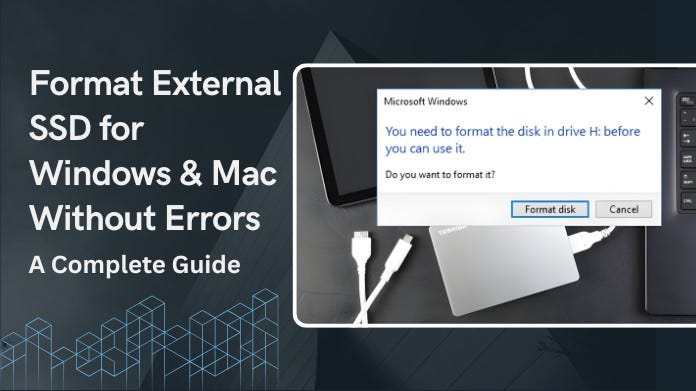
Many users encounter these issues since Windows and macOS treat partitions differently. Using the wrong file system or formatting tool often results in quick failures.
This article will lead you through the best file systems to utilize, proper formatting methods for both systems, and common error remedies to ensure that your SSD is perfectly prepared.
You’ll understand why errors occur and how to prevent them indefinitely. We’ll also highlight any practical applications, such as the GUI Format Download, to make the procedure easier.
By the end, your SSD will be fully compliant, stable, and cross-platform compatible.
Best File System for Both Windows and Mac
Choosing the correct file system is the key to preventing compatibility issues and formatting errors. Windows and macOS don’t fully support all formats, so using the right one ensures smooth read/write access across both platforms.
1. exFAT — Best Overall Choice
exFAT is the most reliable option for cross-platform use.
Supports large files over 4GB
Fully compatible with both Windows and macOS
Performs well with high-speed external SSDs
Ideal for media files, documents, backups, and general storage
For almost every modern use case, exFAT provides the best balance of speed, stability, and compatibility.
2. FAT32 — Universal but Limited
FAT32 works on nearly all devices, including older systems like TVs, car stereos, and retro consoles.
Extensive compatibility
Suitable for smaller drives or older hardware
Limited by the 4GB file size cap
Use FAT32 only if you need support for legacy devices; otherwise, exFAT is the better choice.
How to Format an External SSD on Windows (Without Errors)
Method 1: Using File Explorer
Step 1: Connect your external SSD.
Step 2: Open This PC → right-click the drive → Format.
Step 3: Choose exFAT under “File System.”
Step 4: Uncheck Quick Format to perform a deeper cleanup.
Step 5: Click Start.
Why this avoids errors:
File Explorer is stable and automatically aligns partitions on SSDs.
Brief Note on GUI Format (Windows Only)
If Windows keeps displaying formatting issues, GUI Format can quickly reset or clean the drive before reformatting it to exFAT. When built-in utilities fail, many people seek out a GUI Format download. It also lets you format USBs, SD cards, and large drives to FAT32 quickly and reliably for free.
When to use it:
When File Explorer or Disk Management won’t format
When the SSD has stubborn or corrupted partitions
Important:
After using the GUI Format, reformat the SSD to exFAT for Windows + Mac compatibility.
Method 2: Using Disk Management
If File Explorer gives errors like “Windows cannot complete the format”, use Disk Management.
Step 1: Press Win + X → choose Disk Management.
Step 2: Find your SSD → right-click → Format.
Step 3: Select exFAT and leave allocation size to Default.
Step 4: Confirm and format.
Extra Tip:
If the SSD shows as RAW or has corrupted partitions, right-click → Delete Volume → then New Simple Volume → Format.
How to Format an External SSD on macOS (Without Errors)
Method 1: Using Disk Utility
The simplest and most reliable way to format an external SSD on macOS is to use Disk Utility. It provides a straightforward interface for wiping, renaming, & choosing an appropriate file system without using Terminal or complicated instructions.
Step 1: Open Disk Utility.
Step 2: Select your external SSD (not just the volume).
Step 3: Click Erase.
Step 4: Choose:
Format: exFAT
Scheme: GUID Partition Map
Step 5: Click Erase.
Why GUID is important?
It ensures Windows will recognize the SSD correctly.
Method 2: Terminal Command Format
If Disk Utility fails or displays messages such as “Erase process failed,” you can use Terminal to perform a full format. This method provides greater control and can repair recalcitrant partitions that Disk Utility cannot manage.
diskutil list
diskutil eraseDisk ExFAT MYSSD GPT /dev/diskX
Replace diskX with your actual SSD identifier.
This method helps when:
Disk Utility gives “Erase failed.”
SSD doesn’t mount
You want a clean partition rewrite
Common Formatting Errors & How to Fix Them
1. “Windows Cannot Complete the Format.”
Fix:
Delete partitions in Disk Management
Create a New Simple Volume
Try slow formatting instead of Quick Format
2. “Erase Process Failed” on macOS
Fix:
Change Scheme to GUID Partition Map
Use Terminal to force format
Ensure SSD is not write-protected
3. SSD Not Showing Up
Fix:
Use a different USB port (avoid USB hubs)
Open Device Manager → Update drivers
Use Show All Devices in Disk Utility (Mac)
4. SSD Shows as Read-Only on Mac
Cause: Windows created an NTFS partition.
Fix: Reformat to exFAT from macOS Disk Utility.
Tips to Avoid Formatting Errors Completely
Always back up data before formatting.
Use exFAT unless you absolutely need FAT32.
Avoid formatting via cheap USB hubs or adapters.
Disconnect the drive safely every time.
Use high-quality cables for external SSDs.
Keep macOS and Windows updated; SSD drivers depend on it.
When You Should NOT Use exFAT
Avoid exFAT if:
You’re using the SSD for Time Machine backups (requires APFS or HFS+).
You need Windows installations (requires NTFS).
You want encryption via OS-native methods like BitLocker or FileVault.
For simple file sharing and storage, exFAT remains ideal.
Final Thoughts
Formatting an external SSD for usage on both Windows and Mac does not have to be difficult; selecting exFAT, using the appropriate formatting tools, and implementing the solutions listed above will eliminate almost all issues.
Whether you’re storing games, films, documents, or backups, this strategy ensures that your SSD is compatible, stable, and error-free.
Taking the time to format properly now will save you a lot of frustration later when transferring files between computers.
About the Author:
I’m Wilford Conrad, a computer enthusiast and web developer. I enjoy experimenting with new tools, debugging gear, and writing manuals that make technology easy to use and accessible to everybody.
I want to help readers get the most out of their devices and solve practical tech problems through my guides.
Ref: Morelo, D. (2025, January 24). How to Format an External Drive without Losing Data (2025). Data Recovery Tips. Recover Deleted Files on Mac, Windows. https://www.cleverfiles.com/howto/reformat-external-hard-drive-without-losing-data.html